
computer installation
建立Windows 11安裝媒體
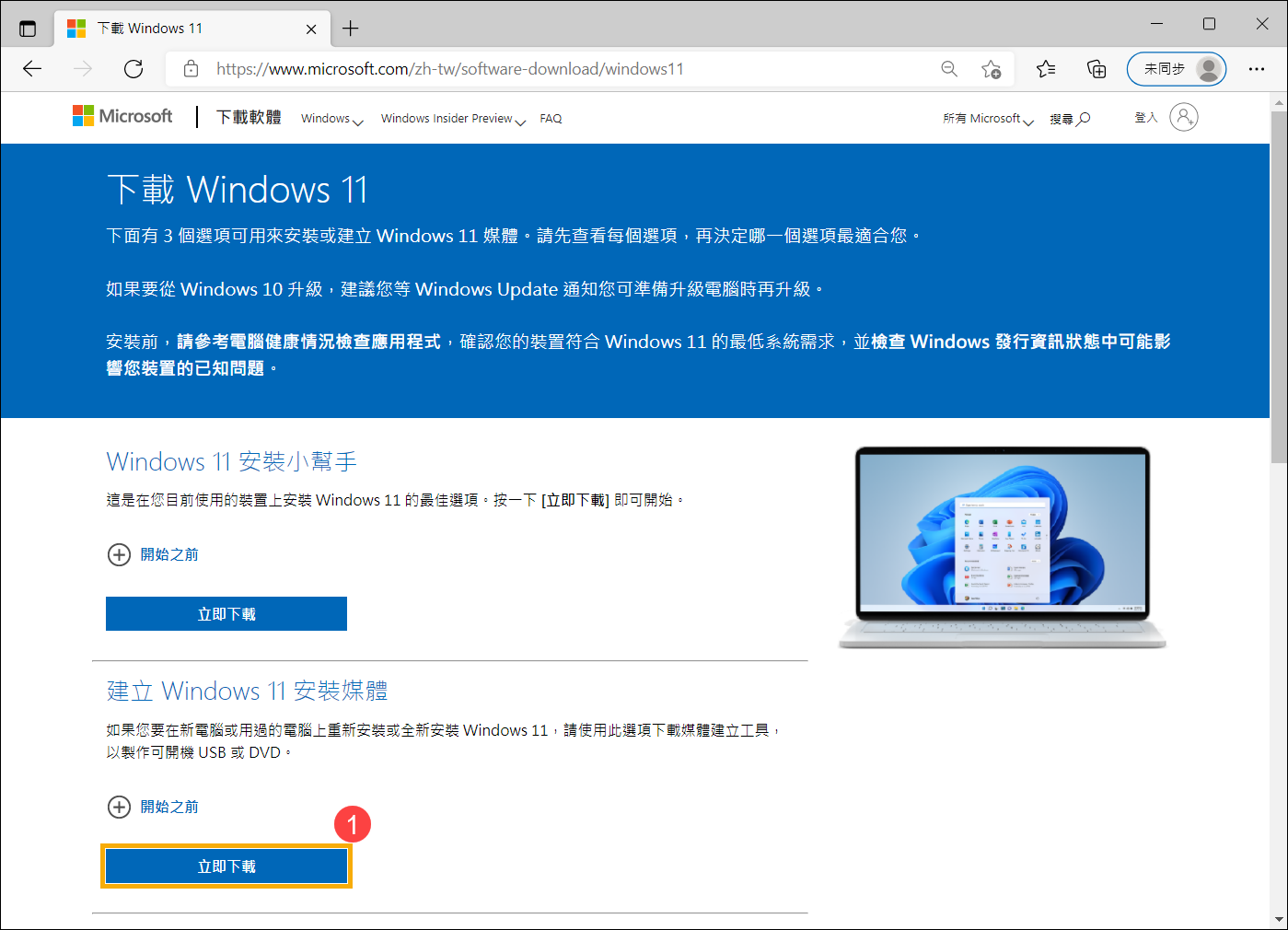
- Go toMicrosoft Website, at建立Windows 11安裝媒體中點擊[Download Now]①。
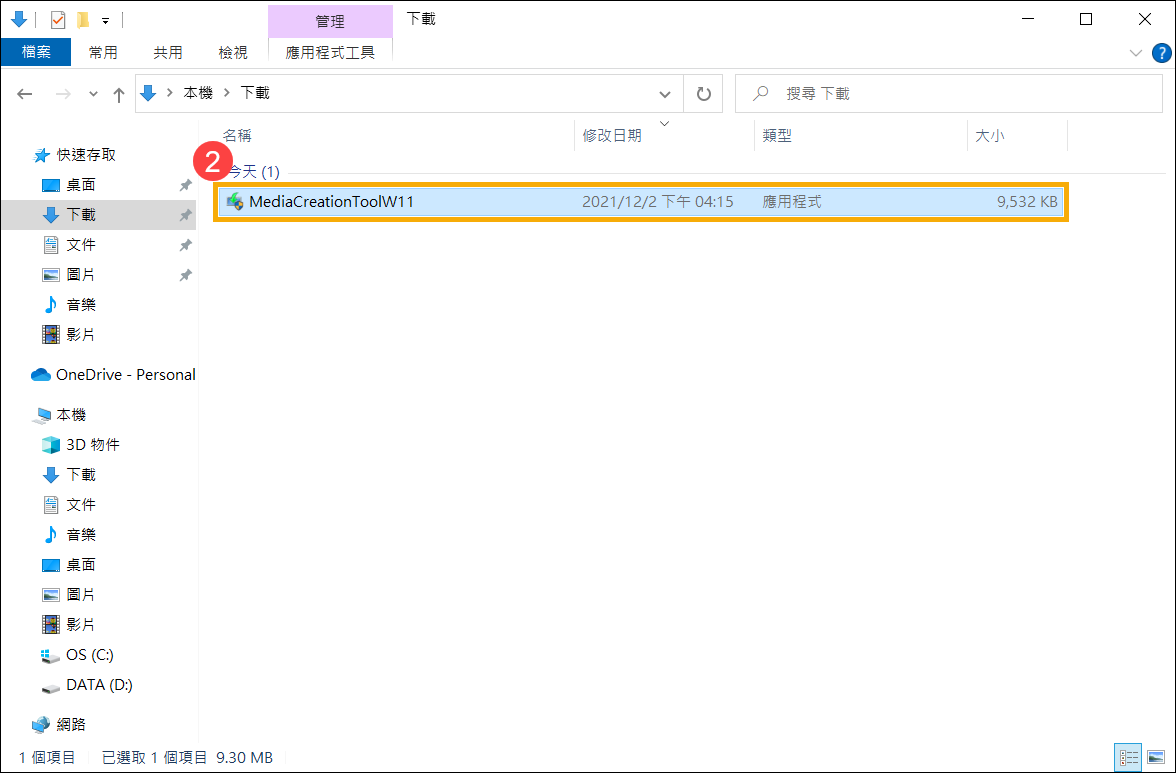
- Go to the folder location where the file for the computer download is located, and then left-click twice[MediaCreationTool]②The file starts the installation.
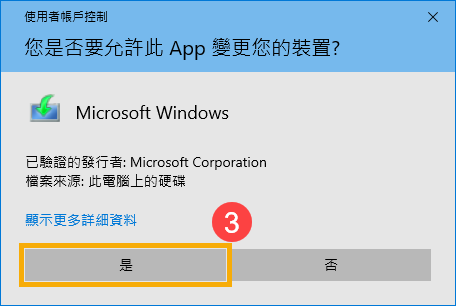
- If there are any issuesUser account controlWindow, please click[Yes]③。
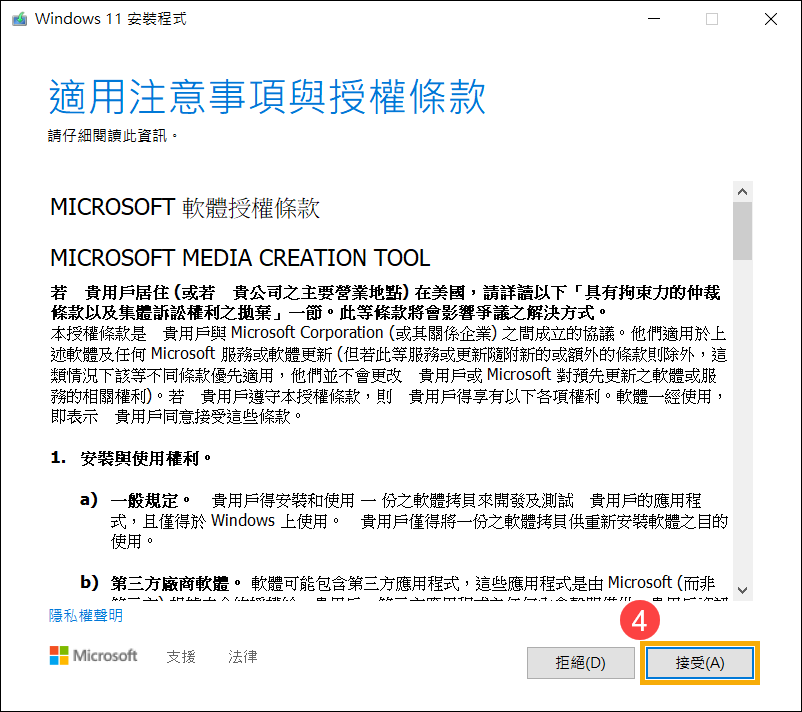
- Read Microsoft Software Terms and License Agreement carefully, then click[Accept]④。
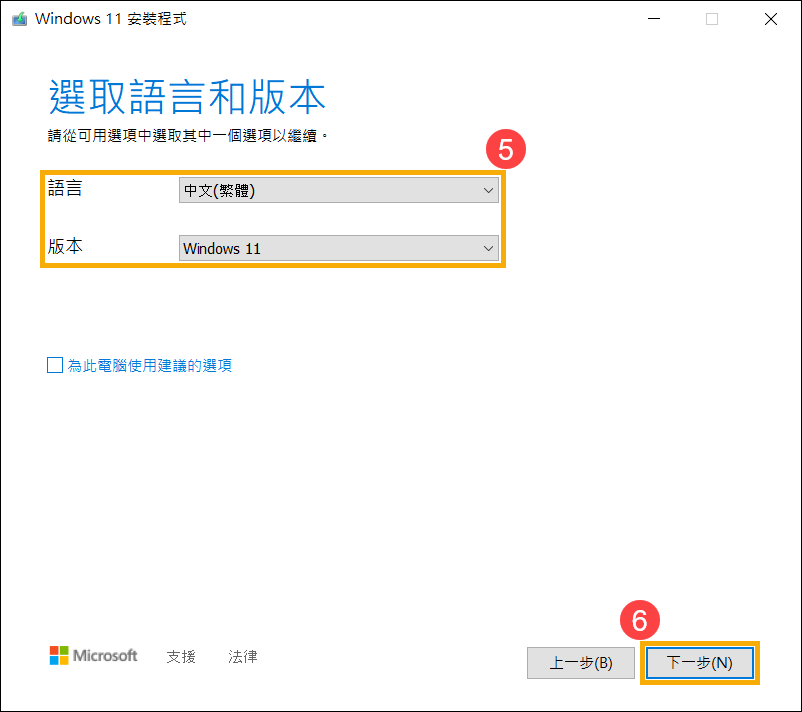
- Select the Windows 11 you want to createLanguage、版本Install media⑤,然後點選[Next]⑥。
Please note: PleaseSelect based on the language and edition of the Windows 11 computer you want to reinstall, to avoid potential issues with Windows product key activation when installing Windows later (if you have a computer with a digital license, your computer will be activated when Windows is reinstalled and connected to the Internet).
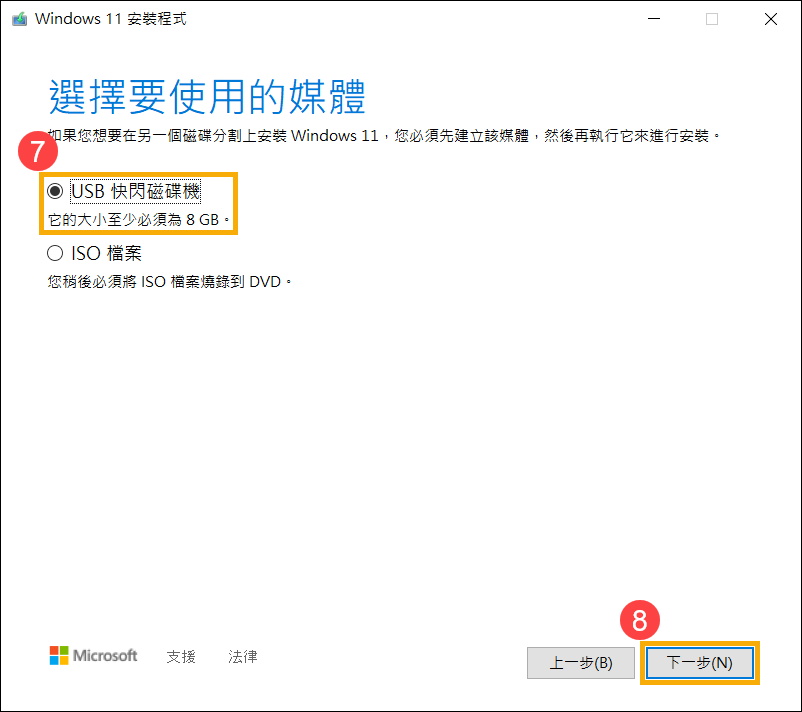
- Connect the USB flash drive you want to create as Windows 11 installation media to your computer, and then select[USB Flash Drive]⑦And click[Next]⑧。
Please note: All data on the USB drive will be erased during the creation processIf you have data stored inside, please back it up first.
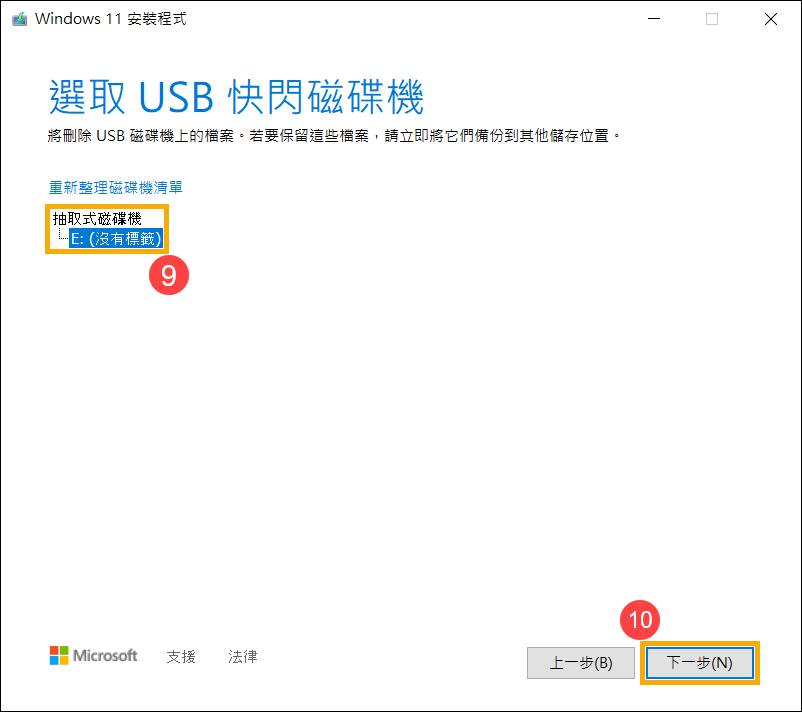
- In a removable disk drive, confirm and select the USB flash drive you want to use⑨,然後點選[Next]⑩The system will begin downloading and creating the installation media for Windows 11. The time required to create the installation media will vary depending on your computer and internet connection speed.
請注意: 建立安裝媒體過程中,請確保電腦有接上電源、保持網際網路連線且不要強制關閉,以避免未製作完善。
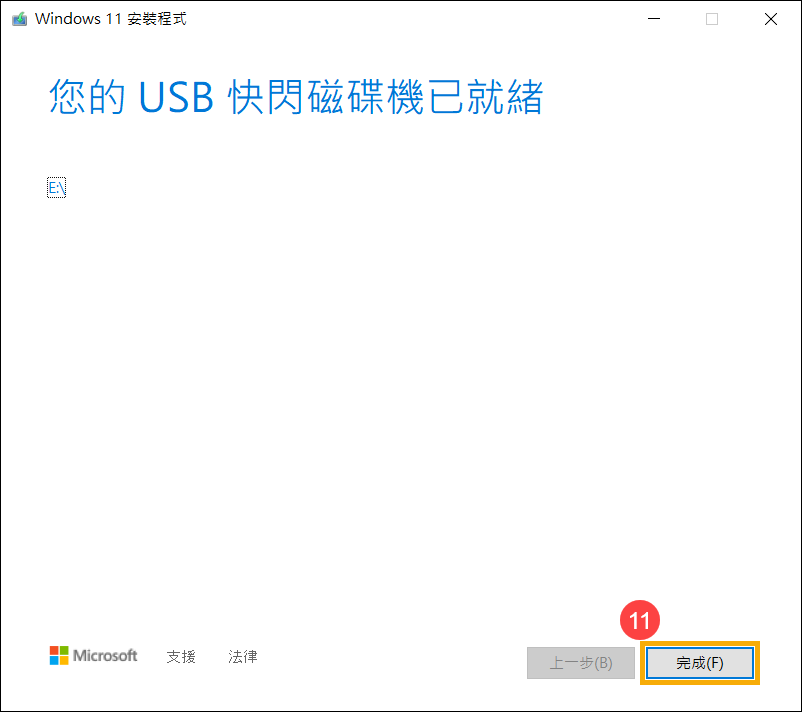
- The installation media has been created. Please click[Done]⑪。
- 請先將已製作好的安裝媒體(USB隨身碟)連接至電腦。
- Start your computer and select to boot from a USB flash drive to learn moreHow to boot up from a USB flash drive。
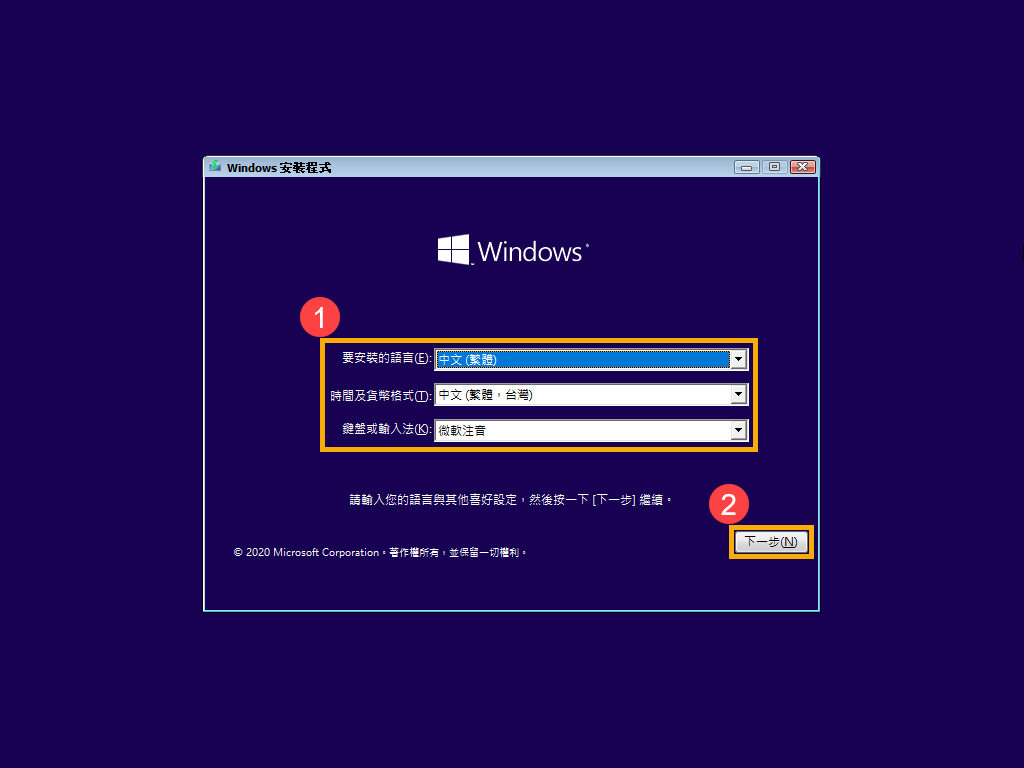
- The computer will enter the Windows installation program. Please select the language, time and currency format, and keyboard or input method you want to install.①,然後點選[Next]②。
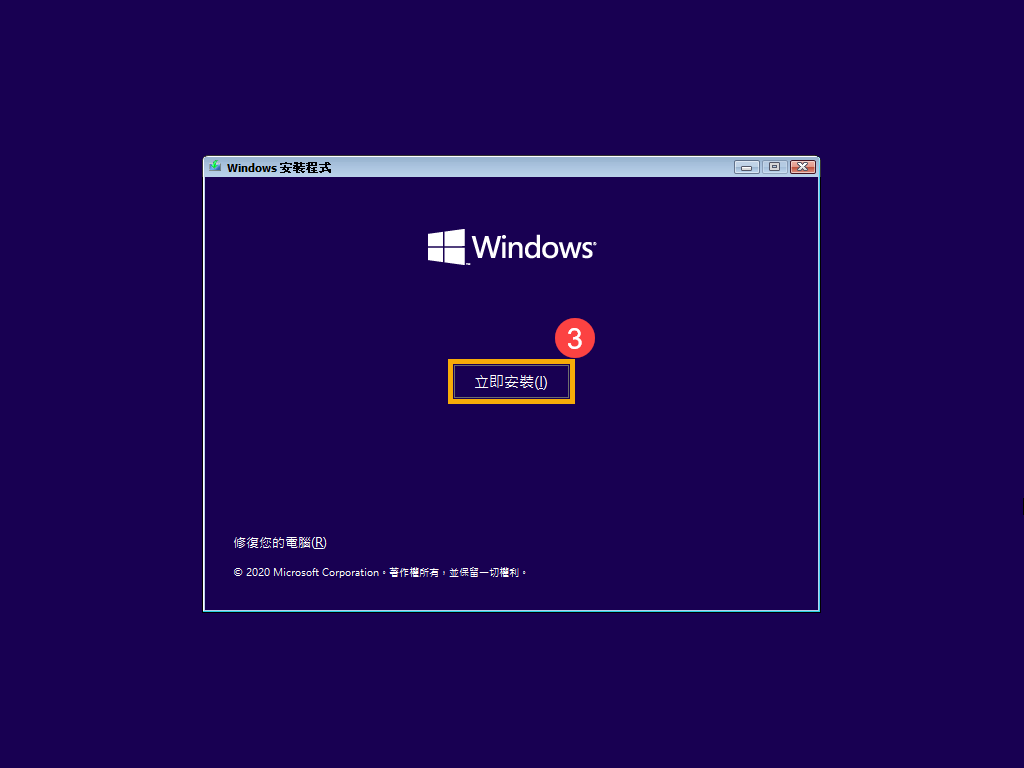
- Click[Install Now]③。
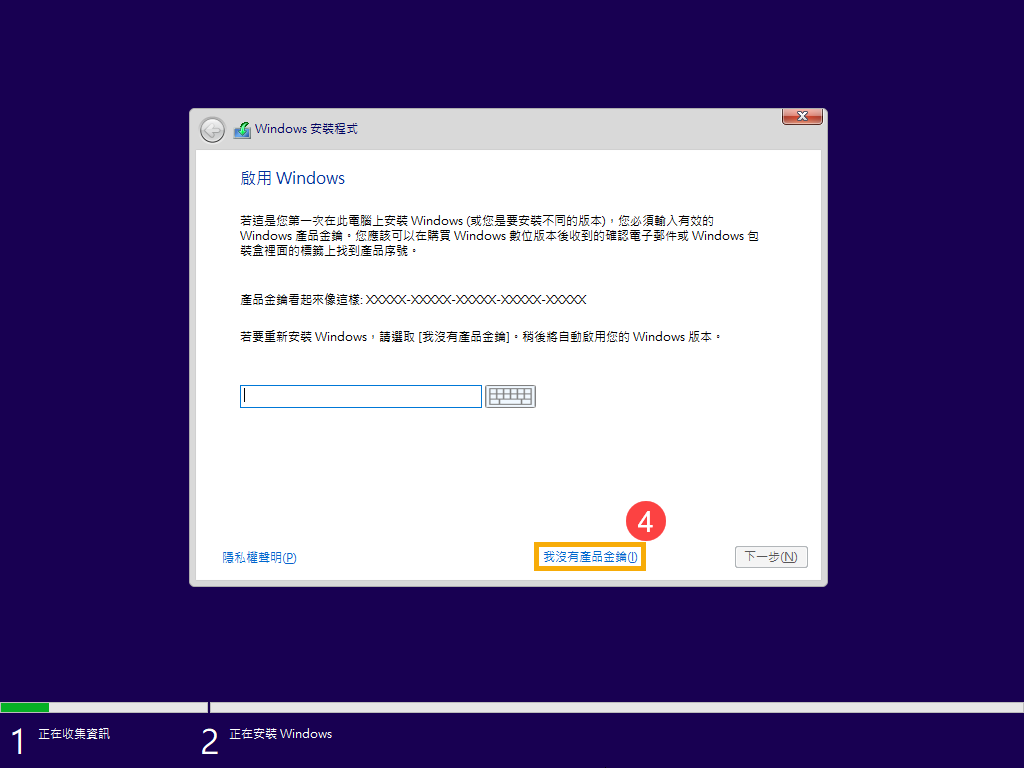
- If your computer ships with Windows operating system (i.e., digital license), click[I don't have a product key]④Your computer will automatically be enabled when Windows is reinstalled and connected to the Internet.
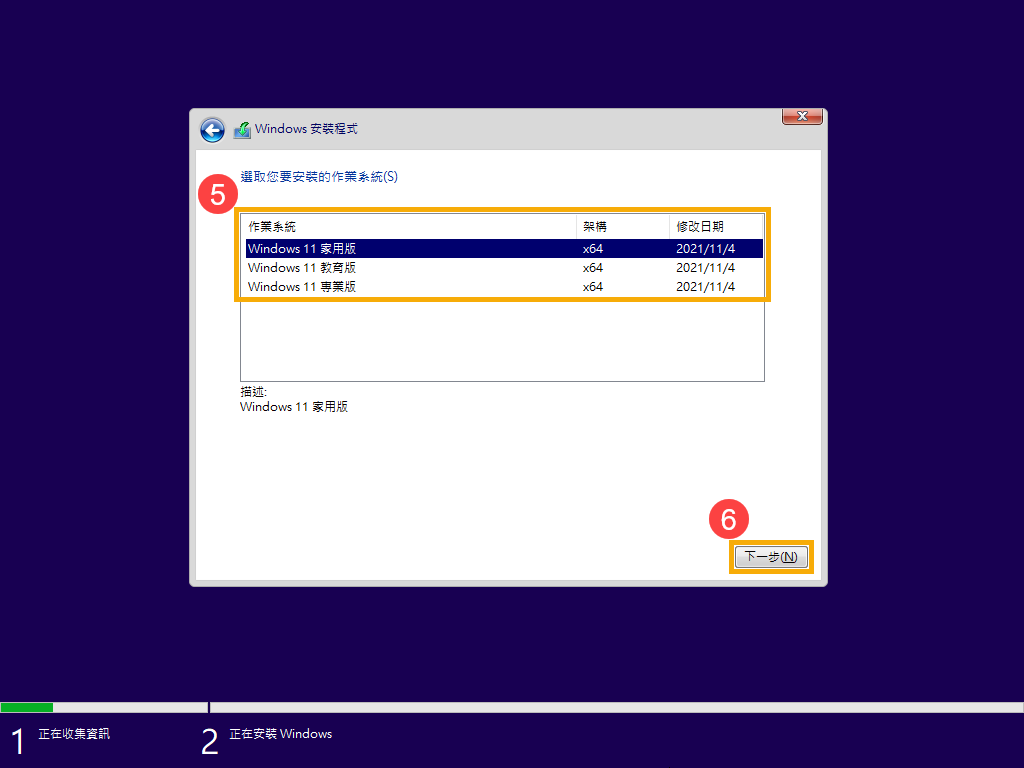
- Select the version of the operating system you want to install⑤,然後點選[Next]⑥。
Please note: Please select your computerThe version that was originally usedIf the version does not match, it will cause Windows product key authorization abnormalities.
- Please read Microsoft Software Terms & Conditions of Use. Click[I accept the terms of service]⑦,然後點選[Next]⑧。
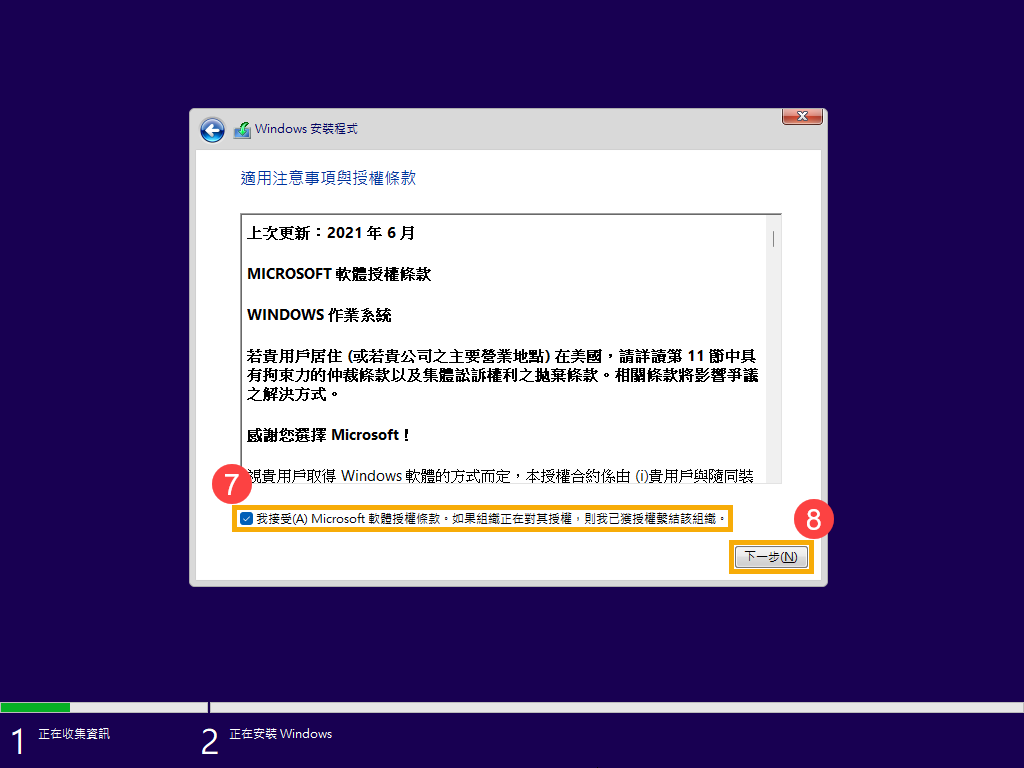
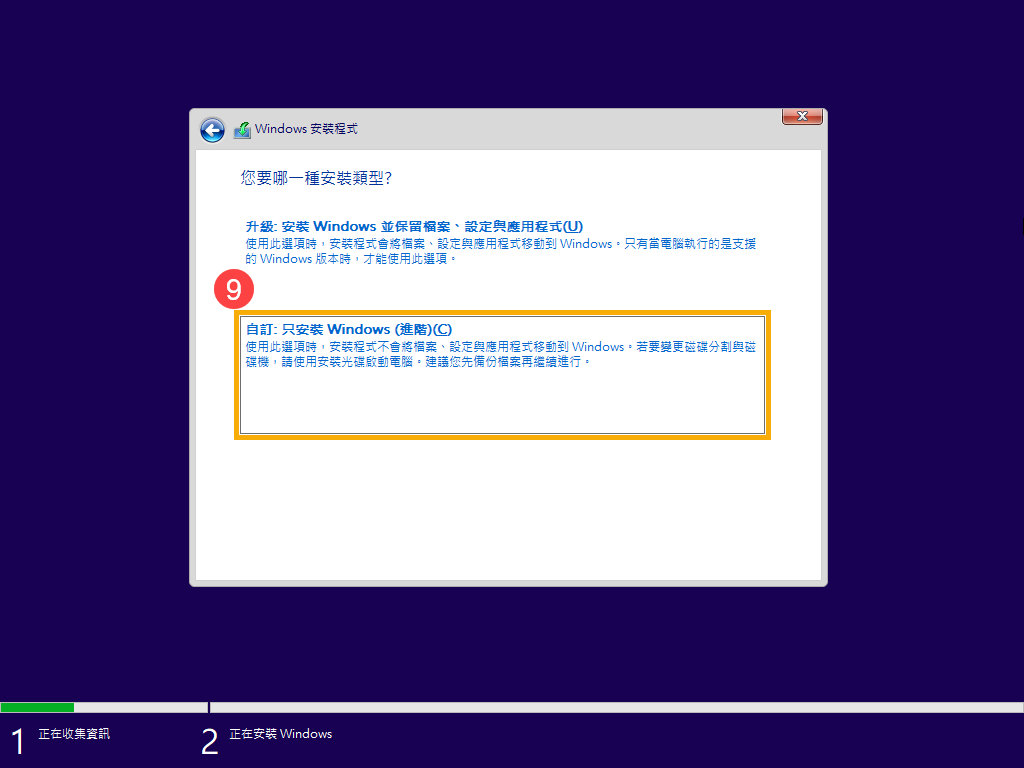
- Click[自訂: 只安裝Windows (進階) ]⑨。
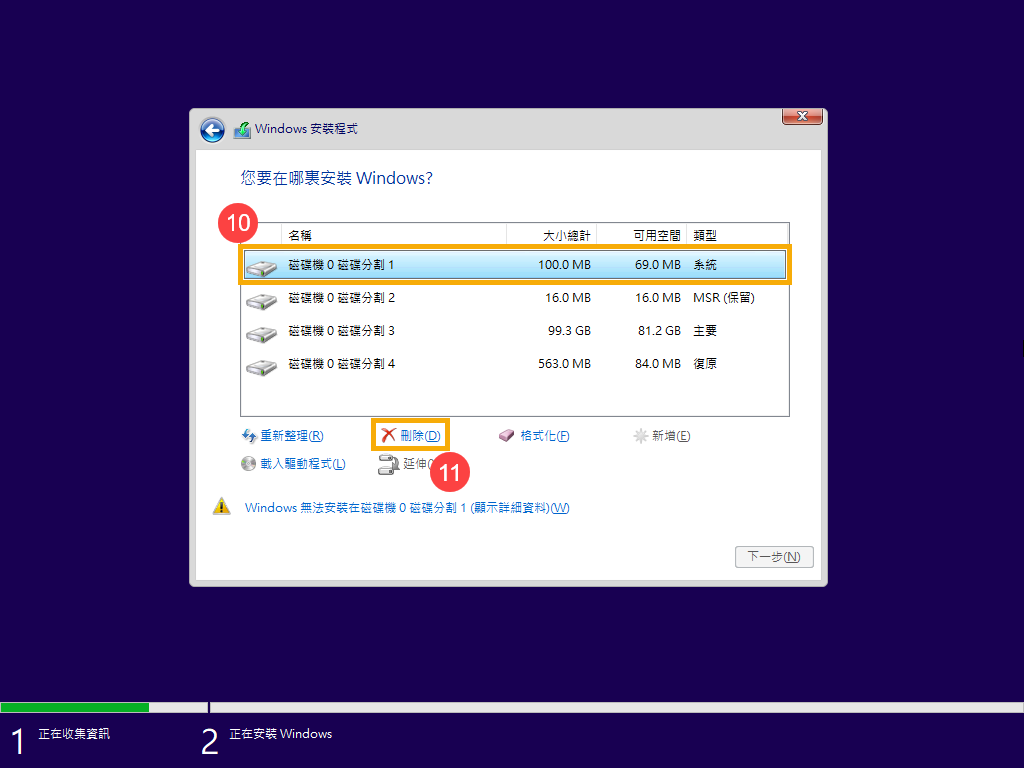
- A list of disks and disk partitions on your computer will be displayed. If multiple disks are shown, you only need toDelete all partitions on the disk where you want to install Windows. (Most C drives areDisk Drive0, below with disk drive 0 as an example
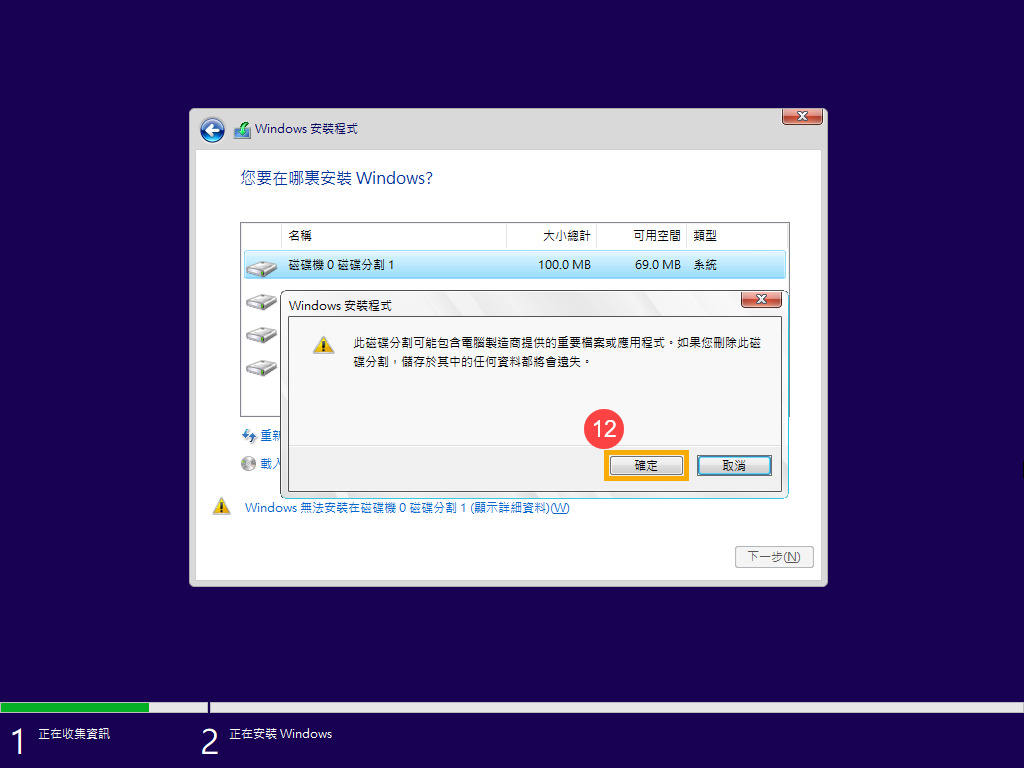
Select each disk partition in the list for drive 0⑩,然後點選[Delete]⑪. If Windows Setup prompts you, click[OK]⑫。
註: If you select delete for other disk drives, all data on that disk drive will be removed.
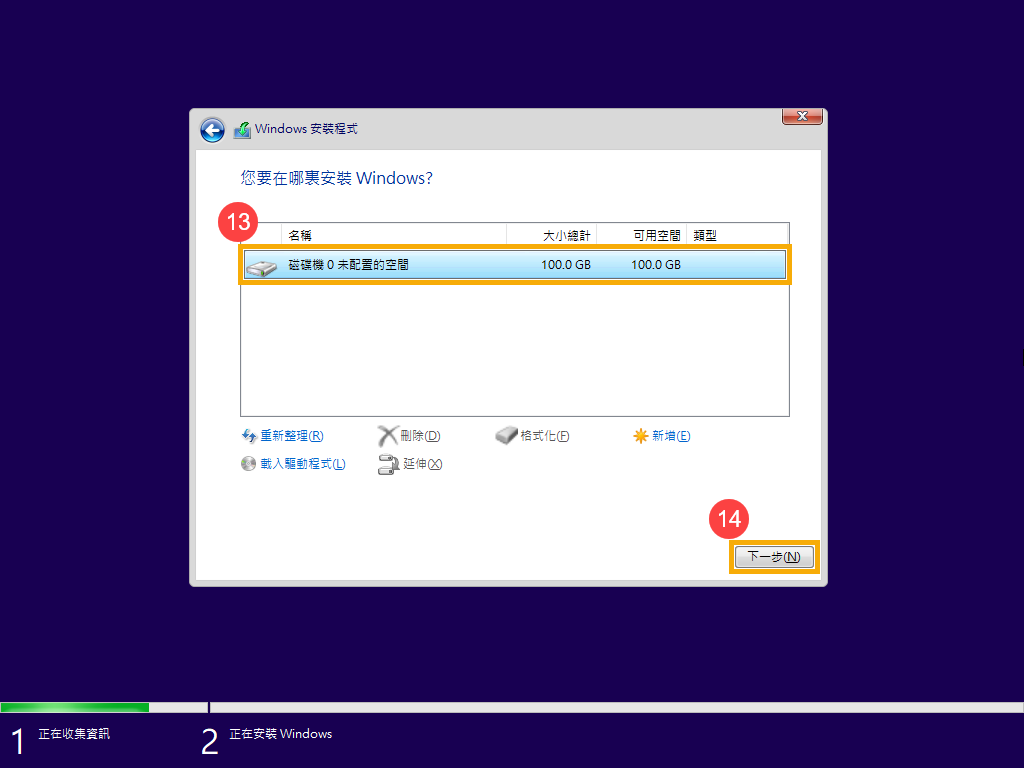
- After repeating step 9 to delete all partitions on disk 0, disk 0 will only remain unallocated space. Select[Disk drive 0 has no space configured]⑬,然後點選[Next]⑭The Windows reinstallation will begin.
Please note: During the reinstallation process, make sure the computer is plugged in and do not force it to shut down to avoid unexpected issues.
- After installation, the computer will restart and enter the Windows 11 basic settings screen. Learn moreWindows初次使用基本設定。

- When Windows 11 basic settings are completed and the desktop is entered, you need to go to the ASUS official website to download the driver to learn moreHow to Search for and Download Drivers。